Create Custom Error Pages in Django: A Complete Guide
Learn how to create custom, user-friendly error pages in Django to enhance UX and maintain UI consistency with this step-by-step guide.
4 min read • 3/18/2026
As a web developer building a web application, there are many chances for the website to crash, users to access unauthorized URLs, or users to try to access URLs that don't exist. Handling these kinds of errors/tasks can become a headache. We don't want to break the UI consistency, and using the default error pages provided by the framework doesn't always work as expected.
In this article, we will learn how to integrate and create custom, user-friendly error pages such as 404 (Page Not Found), 500 (Internal Server Error), and 403 (Forbidden), etc, in Django. This approach helps to enhance the user experience by replacing generic error messages thrown by the framework with a more consistent and engaging interface.
Django: A Python-Based Full-Stack Framework
Django is a powerful Python-based full-stack framework that simplifies web development by focusing on rapid development, built-in components, and clean, pragmatic design. It encourages writing reusable components and follows the "Don't Repeat Yourself" (DRY) principle, making it a popular choice among developers for building robust web applications.
Project Setup
Let's start by creating a simple Django project from scratch to learn how we can implement custom error-handling pages. We will name the project custom_error_page and write some code to understand the process.
Setting Up a Virtual Environment for Your Django Project
For better package management and to avoid conflicts with global Python and its package installations, it's always recommended to create a virtual environment for each Django project.
1. Create and Activate the Virtual Environment
Open your terminal or command prompt in your workspace and execute the following commands:
For Windows Users:
python -m venv venv
venv\Scripts\activate
For Linux or macOS Users:
python3 -m venv venv
source venv/bin/activate
Activating the virtual environment ensures that any Python packages you install are contained within this environment, preventing potential conflicts with other projects' dependencies.
2. Install the Django Framework
With the virtual environment activated, install Django by executing the following:
pip install djangoThis command installs the latest version of Django, allowing you to start developing your project.
3. Create the Django Project
Now, create your Django project by executing:
django-admin startproject custom_error_pagepython@pythonfordeveloper:~$ python3 -m virtualenv venv
created virtual environment CPython3.12.3.final.0-64 in 282ms
creator CPython3Posix(dest=/home/venv, clear=False, no_vcs_ignore=False, global=False)
seeder FromAppData(download=False, pip=bundle, via=copy, app_data_dir=/home/.local/share/virtualenv)
added seed packages: pip==24.0
activators BashActivator,CShellActivator,FishActivator,NushellActivator,PowerShellActivator,PythonActivator
python@pythonfordeveloper:~$ source venv/bin/activate
(venv) python@pythonfordeveloper:~$ pip install django
Collecting django
Downloading django-5.2.7-py3-none-any.whl.metadata (4.1 kB)
Collecting asgiref>=3.8.1 (from django)
Downloading asgiref-3.10.0-py3-none-any.whl.metadata (9.3 kB)
Collecting sqlparse>=0.3.1 (from django)
Using cached sqlparse-0.5.3-py3-none-any.whl.metadata (3.9 kB)
Downloading django-5.2.7-py3-none-any.whl (8.3 MB)
━━━━━━━━━━━━━━━━━━━━━━━━━━━━━━━━━━━━━━━━ 8.3/8.3 MB 19.4 MB/s eta 0:00:00
Downloading asgiref-3.10.0-py3-none-any.whl (24 kB)
Using cached sqlparse-0.5.3-py3-none-any.whl (44 kB)
Installing collected packages: sqlparse, asgiref, django
Successfully installed asgiref-3.10.0 django-5.2.7 sqlparse-0.5.3
(venv) python@pythonfordeveloper:~$ django-admin startproject custom_error_page
(venv) python@pythonfordeveloper:~$This creates a new directory named custom_error_page with the necessary files and structure for your Django project.
Your project directory will look like this:
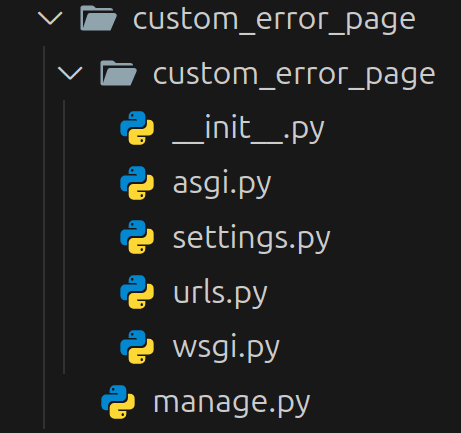
This structure includes the main project directory and a subdirectory with the core settings and configurations of Django.
Migrating the Database
To apply any pending migrations and set up your database, execute:
cd custom_error_page
python manage.py migrate(venv) python@pythonfordeveloper:~$ cd custom_error_page
(venv) python@pythonfordeveloper:~custom_error_page$ python3 manage.py migrate
Operations to perform:
Apply all migrations: admin, auth, contenttypes, sessions
Running migrations:
Applying contenttypes.0001_initial... OK
Applying auth.0001_initial... OK
Applying admin.0001_initial... OK
Applying admin.0002_logentry_remove_auto_add... OK
Applying admin.0003_logentry_add_action_flag_choices... OK
Applying contenttypes.0002_remove_content_type_name... OK
Applying auth.0002_alter_permission_name_max_length... OK
Applying auth.0003_alter_user_email_max_length... OK
Applying auth.0004_alter_user_username_opts... OK
Applying auth.0005_alter_user_last_login_null... OK
Applying auth.0006_require_contenttypes_0002... OK
Applying auth.0007_alter_validators_add_error_messages... OK
Applying auth.0008_alter_user_username_max_length... OK
Applying auth.0009_alter_user_last_name_max_length... OK
Applying auth.0010_alter_group_name_max_length... OK
Applying auth.0011_update_proxy_permissions... OK
Applying auth.0012_alter_user_first_name_max_length... OK
Applying sessions.0001_initial... OKThis command ensures your database schema is up to date.
Starting the Development Server
Launch the Django development server with:
python manage.py runserver(venv) python@pythonfordeveloper:~custom_error_page$ python3 manage.py runserver
Watching for file changes with StatReloader
Performing system checks...
System check identified no issues (0 silenced).
October 08, 2025 - 14:21:08
Django version 5.2.7, using settings 'custom_error_page.settings'
Starting development server at http://127.0.0.1:8000/
Quit the server with CONTROL-C.
WARNING: This is a development server. Do not use it in a production setting. Use a production WSGI or ASGI server instead.
For more information on production servers see: https://docs.djangoproject.com/en/5.2/howto/deployment/Note: We are using Linux, so we used python3. If you are using Windows, you just need to type python.
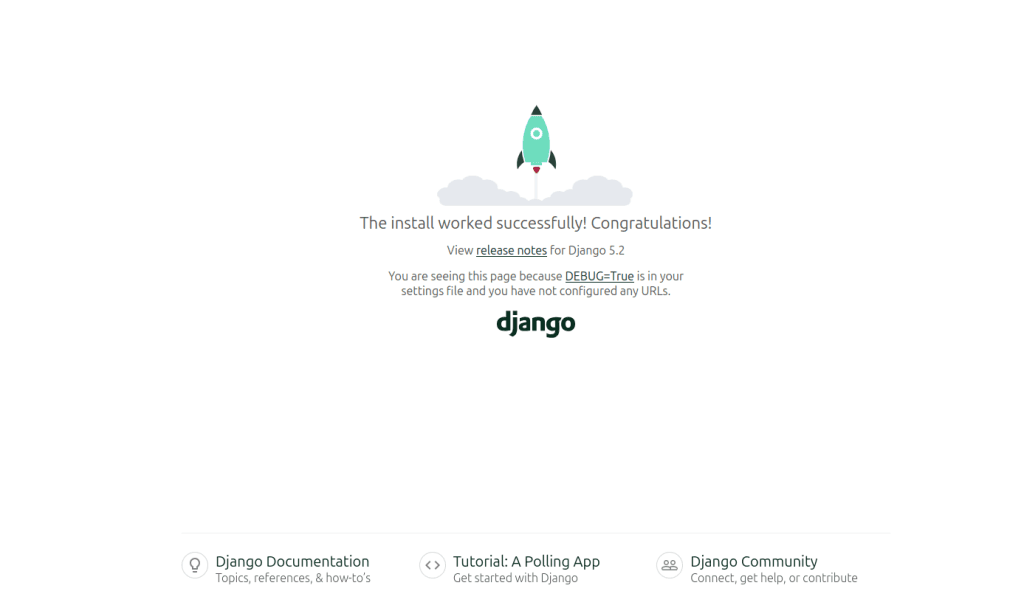
Once the server is running, navigate to http://127.0.0.1:8000 in your web browser. You should see the Django welcome screen.
Customizing the Default 404 Error Page
By default, when a user accesses a non-existent URL, Django displays a basic 404 error page.
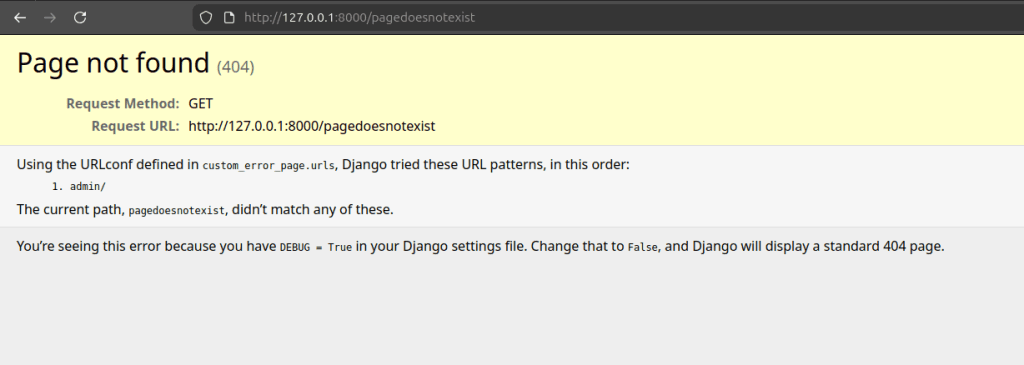
The page you saw above displays detailed error information because DEBUG = True in your Django settings file.

We need to change that to DEBUG = False, and also add the localhost (or your development host) to ALLOWED_HOSTS, just as you would in a production environment.
Please make sure your settings look something like this:

After making those changes, Django will display its default 404 error page instead of detailed debug info.
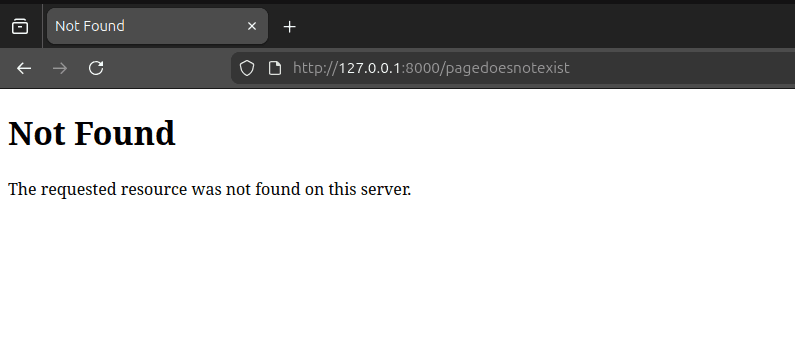
To override it, create a 404.html file in your templates directory. But before doing that, ensure your templates directory is correctly configured in your TEMPLATES setting.
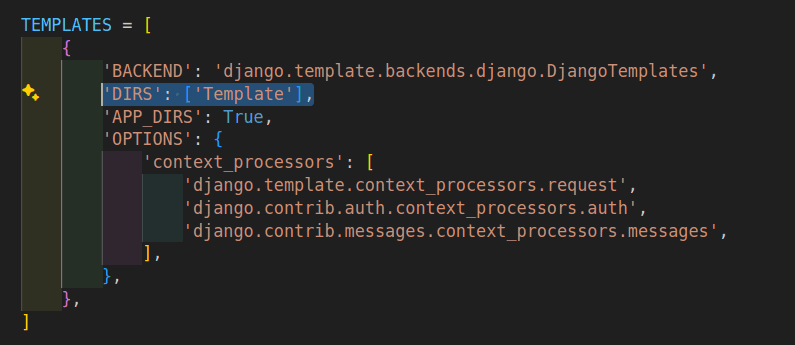
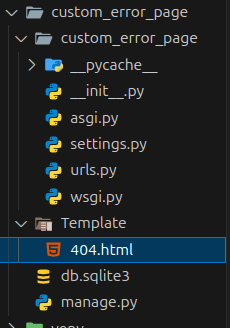
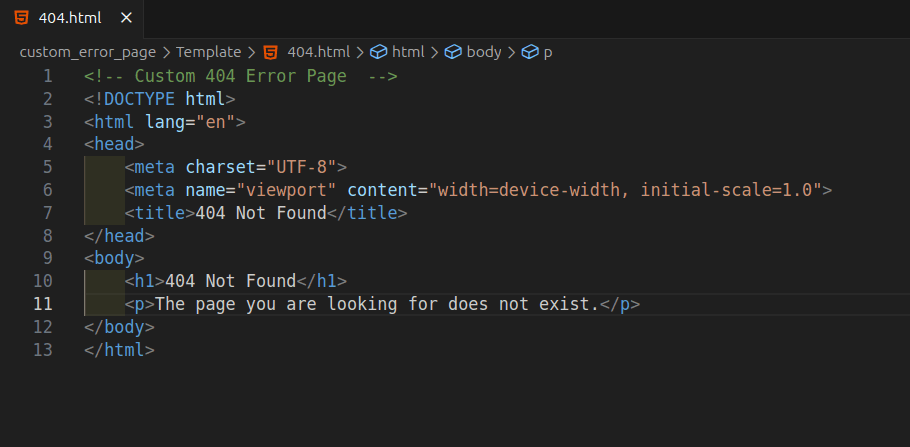
Once set up, your custom 404 page will be used instead of Django's default version.
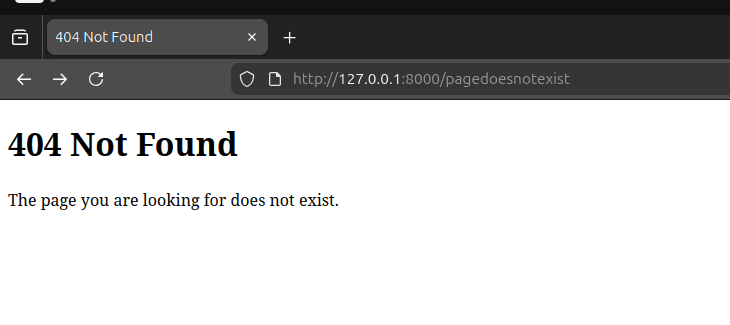
You can follow the same process for 500 Internal Server Error, 400 Bad Request, and 403 Forbidden as well.
When you create these custom error pages in Django, they can inherit from your base template to maintain look and feel consistency.
While developing the site, always strive to avoid writing code that might trigger a 500 error or other exceptions. It's good practice to wrap potentially risky operations in try/except blocks and ensure your code fails gracefully rather than crashing outright.
Conclusion
Many programmers think that creating custom error pages is complicated, but in reality, every modern framework provides an easy and simple way to do it. Implementing custom error handling pages improves user experience and keeps your interface consistent. It's always recommended to create your own error pages rather than relying on the framework defaults.
Previous
How to implement caching in FastAPI?
Next
Build Python Script to Parse and Execute MongoDB Queries
You Might Also Like
 Design & Architecture
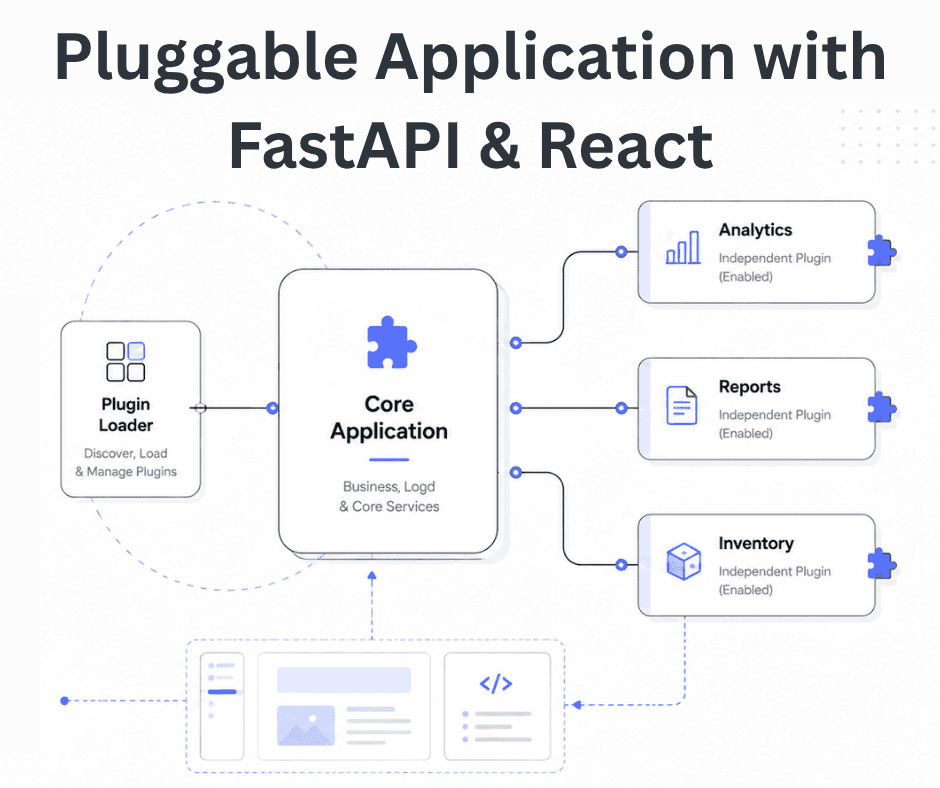
Building a Pluggable Application with FastAPI and React
Some applications need a different architectural approach from the traditional way of building web systems. One useful option is pluggable architectur
11 min read
 Design & Architecture
Beyond Monoliths: Designing Software with a Plug-and-Play Mindset
In the early days of software development, most companies and developers used monolithic architecture to build systems. It is a traditional approach t
5 min read
 Best Practices
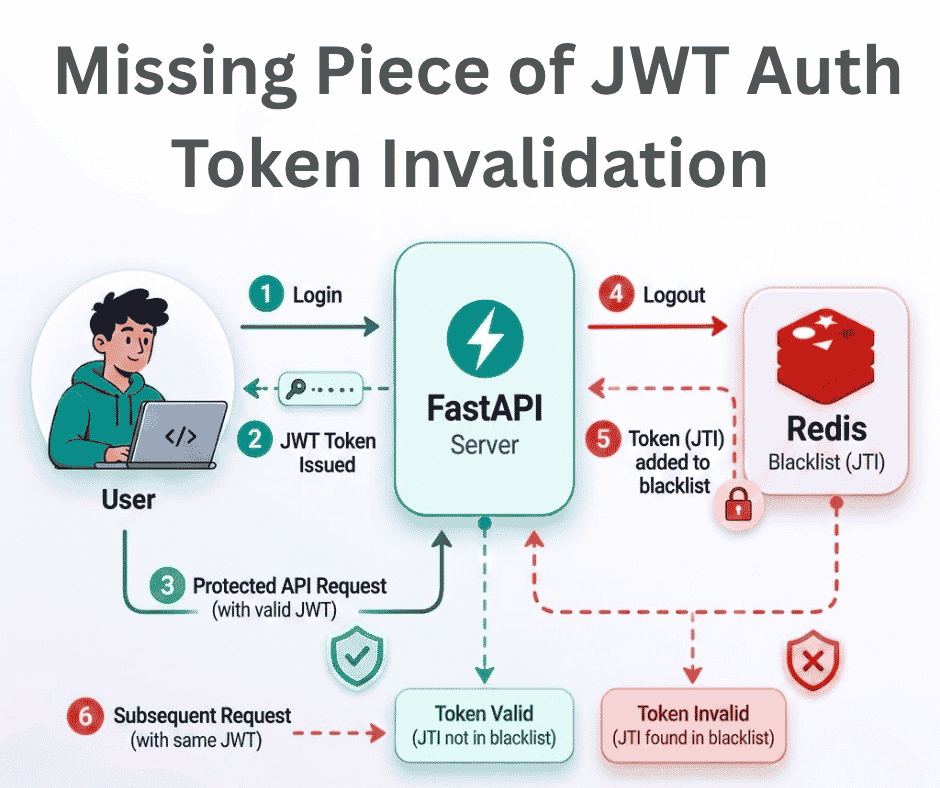
The Missing Piece of JWT Auth: Implementing Token Invalidation in FastAPI
JWT stands for JSON Web Token. It is an open standard that defines a compact and self-contained way to securely transfer data between two or more part
12 min read