Nginx SSL Setup: Step-by-Step Guide for HTTPS Configuration
A step-by-step guide to setting up SSL/TLS on Nginx: configure a server block, issue a certificate, and enforce HTTPS for your website.
4 min read • 3/19/2026
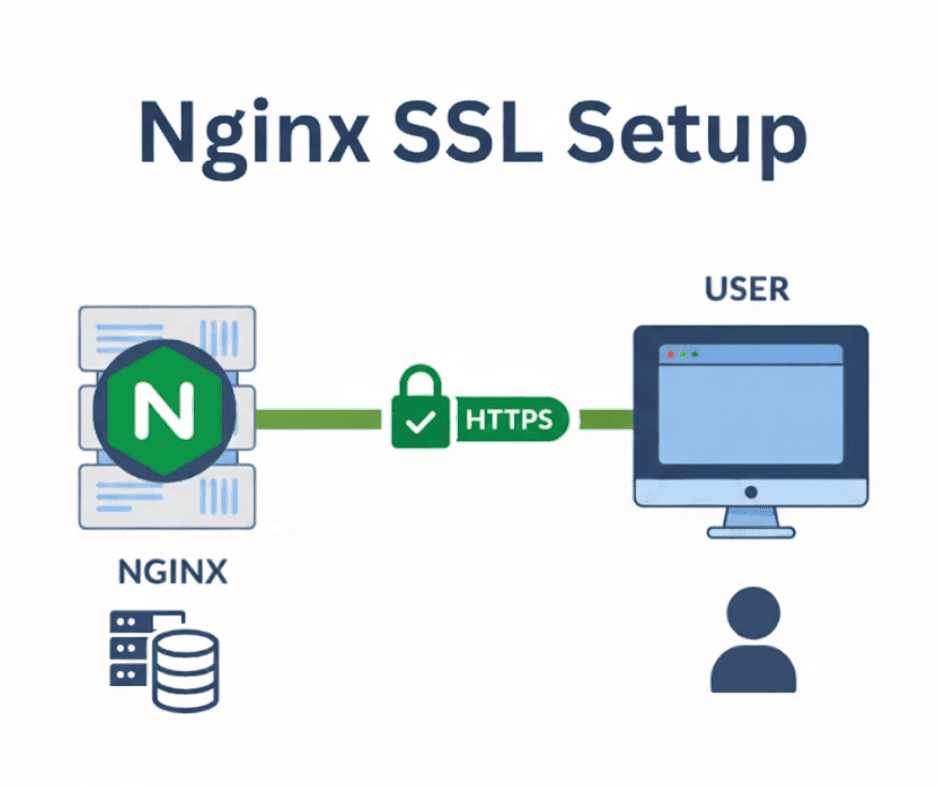
n today’s digital world, everything is protected and encrypted. In the same way, most websites on the internet send data in an encrypted form so that no one other than the server can read or respond to it.
To secure data transfer on websites, the concept of SSL was introduced. SSL stands for Secure Sockets Layer. It is used to encrypt data from the user’s browser before sending it to the server. Initially, websites were served using HTTP, which means SSL was not present, and the data was transferred without encryption. After adding SSL, we see HTTPS instead of HTTP, indicating that the data is being transferred through a secure layer.
In this article, we are going to set up SSL/TLS on a website served by Nginx. Nginx is a free and popular web server. It is not only a web server but also a load balancer, reverse proxy server, caching server, and more. It is one of the leading servers used worldwide.
Hosting a Website with Nginx on AWS
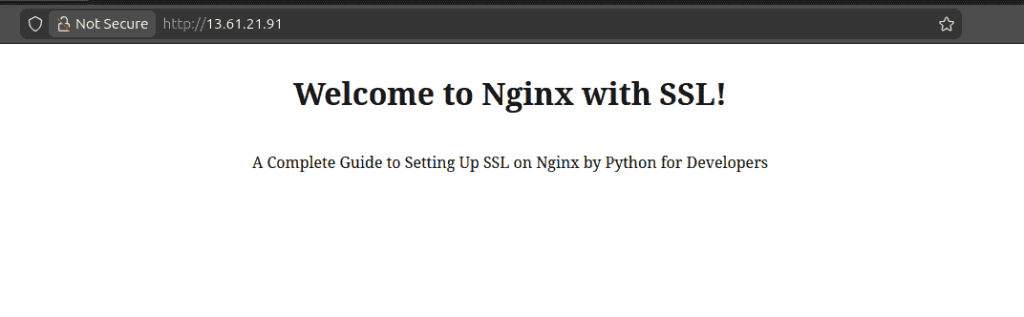
We have hosted our website using Nginx on an Amazon Web Server at the following IP address: 13.61.21.91. It serves our custom HTML file. Below is the Nginx configuration from the nginx.conf file:
# /etc/nginx/nginx.conf
events {
}

http {
   Include mime.types;

   server {
       listen       80;
       listen      \[::\]:80;

       root   /var/www/html/pythonfordeveloper;
       index  index.html index.htm;

       location / {
           try\_files $uri $uri/ \=404;
       }
   }
}
In the above Nginx configuration, the IP is listening on port 80, which is used by HTTP, and the files are served from /var/www/html/pythonfordeveloper. After writing this configuration, ensure that your HTML files exist in the specified directory.
Run the following commands to test the Nginx configuration and reload it to apply the changes:
[ec2-user@ip-172-31-44-68 nginx]$ sudo nginx -t
nginx: the configuration file /etc/nginx/nginx.conf syntax is ok
nginx: configuration file /etc/nginx/nginx.conf test is successful

[ec2-user@ip-172-31-44-68 nginx]$ sudo systemctl reload nginx
[ec2-user@ip-172-31-44-68 nginx]$
After this, open the public IP in your browser, and you will see your website running successfully.
Mapping a Subdomain to Your IP
we are going to map our subdomain nginx.pythonfordeveloper.com to the bare IP address. We are using Cloudflare for this configuration.
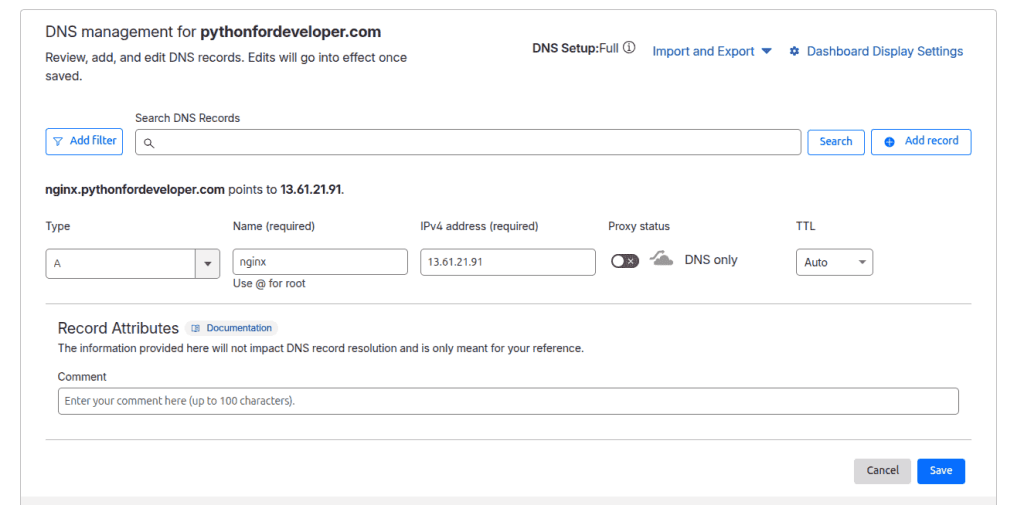
In Cloudflare, we pointed the subdomain to our bare IP address. Once this is done, we can access the website using your domain name instead of the IP. But first we need to make a small change in the Nginx configuration file:
# /etc/nginx/nginx.conf
events {
}

http {
   include       mime.types;

   server {
       listen       80;
       listen      [::]:80;

       server_name nginx.pythonfordeveloper.com;

       root   /var/www/html/pythonfordeveloper;
       index  index.html index.htm;

       location / {
           try_files $uri $uri/ =404;
       }
   }
}
Here, we specify the server_name, which ensures that Nginx serves the files only when the website is accessed through this domain name.
Again, test the Nginx configuration and, if everything is okay, reload it to apply the changes:
[ec2-user@ip-172-31-44-68 nginx]$ sudo nginx -t

nginx: the configuration file /etc/nginx/nginx.conf syntax is ok

nginx: configuration file /etc/nginx/nginx.conf test is successful

[ec2-user@ip-172-31-44-68 nginx]$ sudo systemctl reload nginx
Installing Certbot and Generating SSL Certificates
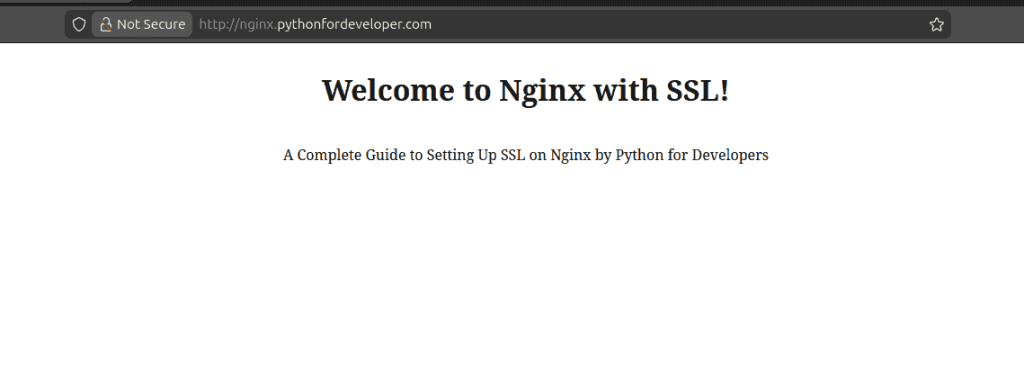
The website is now accessible through the domain name, but it is still not secure. We need to secure it by integrating SSL into the subdomain.
We are going to use a free CA (Certificate Authority) provider called Let’s Encrypt. It is one of the most popular organizations whose goal is to encrypt every website on the internet.
To generate the SSL certificate, we will use Certbot tool along with the necessary plugins. You need to install it by running the following command:
[ec2-user@ip-172-31-44-68 nginx\]$ sudo apt install certbot python3-certbot-nginx
This will install Certbot and the python3-certbot-nginx plugin required for generating the certificate. After successful installation, we can generate the SSL certificate by executing the following command:
[ec2-user@ip-172-31-44-68 nginx]$ sudo certbot certonly --nginx
Saving debug log to /var/log/letsencrypt/letsencrypt.log

Which names would you like to activate HTTPS for?
We recommend selecting either all domains, or all domains in a VirtualHost/server block.
- - - - - - - - - - - - - - - - - - - - - - - - - - - - - - - - - - - - - - - -
1: nginx.pythonfordeveloper.com
- - - - - - - - - - - - - - - - - - - - - - - - - - - - - - - - - - - - - - - -
Select the appropriate numbers separated by commas and/or spaces, or leave input
blank to select all options shown (Enter 'c' to cancel):
Requesting a certificate for nginx.pythonfordeveloper.com

Successfully received certificate.
Certificate is saved at: /etc/letsencrypt/live/nginx.pythonfordeveloper.com/fullchain.pem
Key is saved at:         /etc/letsencrypt/live/nginx.pythonfordeveloper.com/privkey.pem
This certificate expires on 2026-01-20.
These files will be updated when the certificate renews.
Certbot has set up a scheduled task to automatically renew this certificate in the background.

- - - - - - - - - - - - - - - - - - - - - - - - - - - - - - - - - - - - - - - -
If you like Certbot, please consider supporting our work by:
 * Donating to ISRG / Let’s Encrypt:   https://letsencrypt.org/donate
 * Donating to EFF:                    https://eff.org/donate-le
- - - - - - - - - - - - - - - - - - - - - - - - - - - - - - - - - - - - - - - -
This will generate the certificate and private key, but it will not automatically integrate them. If you want automatic integration, you can use the following command instead:
sudo certbot --nginxConfiguring Nginx for HTTPS
Update the nginx.conf file to integrate the newly generated SSL certificate.
# /etc/nginx/nginx.conf
events {

}

http {

   include       mime.types;

   server {
       listen       80;
       listen      [::]:80;
       return 301 https://$host$request_uri;
   }

   server {

       listen       443 ssl;
       listen      [::]:443 ssl;

       server_name  nginx.pythonfordeveloper.com;

       ssl_certificate /etc/letsencrypt/live/nginx.pythonfordeveloper.com/fullchain.pem;
       ssl_certificate_key /etc/letsencrypt/live/nginx.pythonfordeveloper.com/privkey.pem;

       root   /var/www/html/pythonfordeveloper;
       index  index.html index.htm;

       location / {
           try_files $uri $uri/ =404;
       }
   }
}
In the above nginx.conf file, all HTTP requests are redirected to HTTPS. We also specify the ssl_certificate and ssl_certificate_key paths in Nginx, which are used for encryption.
Now, test the Nginx configuration and reload the Nginx server:
[ec2-user@ip-172-31-44-68 nginx]$ sudo nginx -t

nginx: the configuration file /etc/nginx/nginx.conf syntax is ok

nginx: configuration file /etc/nginx/nginx.conf test is successful

[ec2-user@ip-172-31-44-68 nginx]$ sudo systemctl reload nginx
Now, open the website, and you will see that it is using HTTPS, confirming that the SSL configuration has been successfully applied.
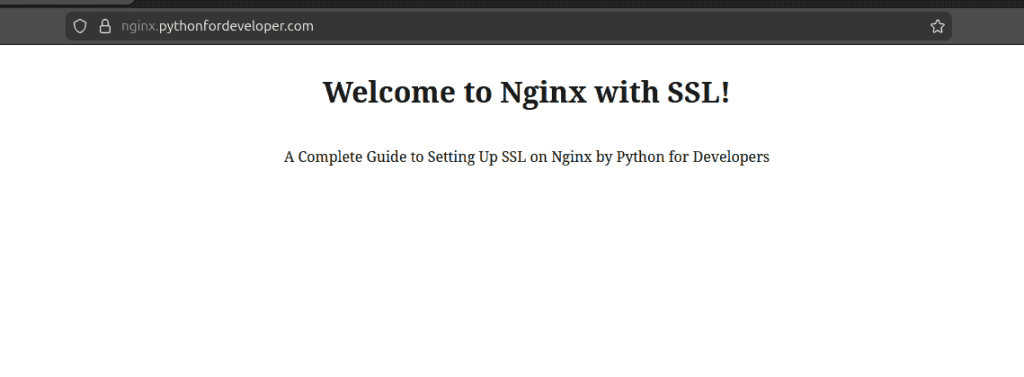
We can see that our website is now using HTTPS.
Conclusion
You have successfully configured SSL for your domain, enabling encrypted communication between the client and the web server. While SSL integration may seem complicated at first, careful exploration and learning make it straightforward. Since you can obtain an SSL certificate for free from Let’s Encrypt, it is highly recommended to use SSL on your website, as it increases user trust and security.
You Might Also Like
 Design & Architecture
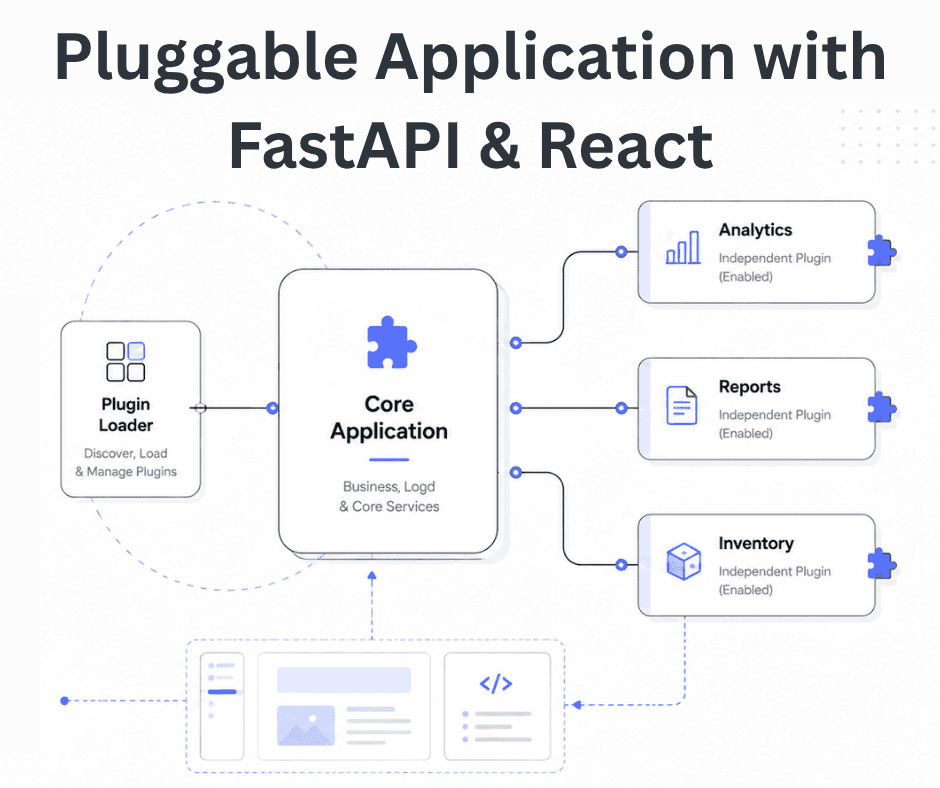
Building a Pluggable Application with FastAPI and React
Some applications need a different architectural approach from the traditional way of building web systems. One useful option is pluggable architectur
11 min read
 Design & Architecture
Beyond Monoliths: Designing Software with a Plug-and-Play Mindset
In the early days of software development, most companies and developers used monolithic architecture to build systems. It is a traditional approach t
5 min read
 Best Practices
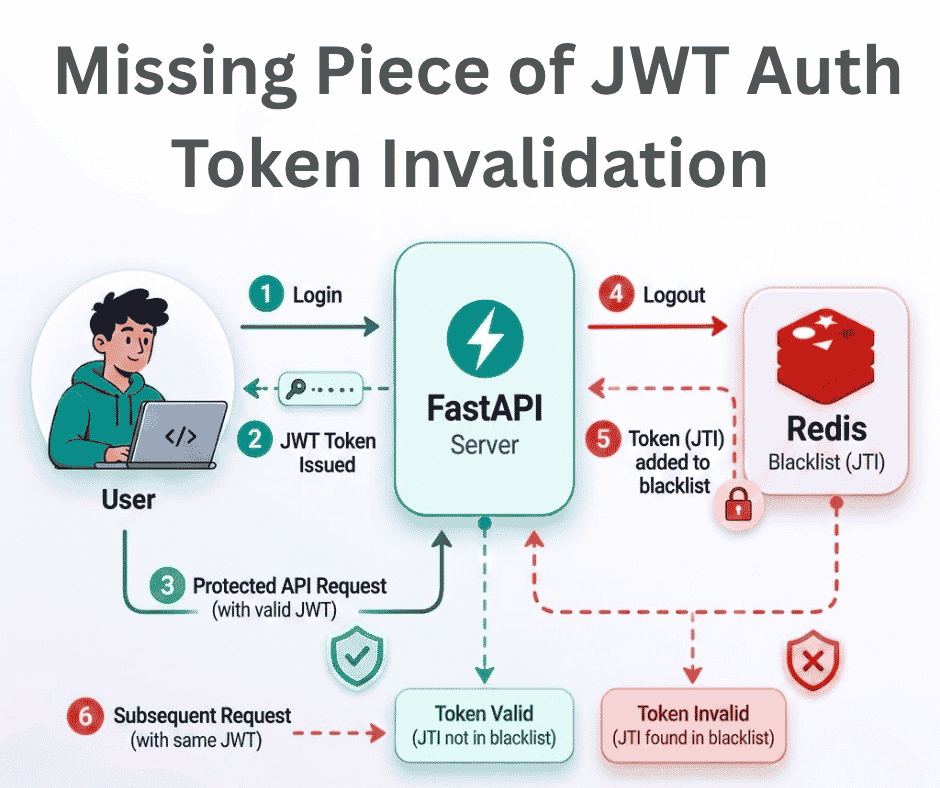
The Missing Piece of JWT Auth: Implementing Token Invalidation in FastAPI
JWT stands for JSON Web Token. It is an open standard that defines a compact and self-contained way to securely transfer data between two or more part
12 min read