How to set up Django with PostgreSQL?
Learn how to integrate Django with PostgreSQL using Docker. A complete setup guide for developers to build fast, scalable web applications.
3 min read • 3/19/2026
In the modern digital era, every piece of generated data is stored and used for various purposes in the future, whether it’s a simple web application or a complex system. In this article, we’re going to explore the best approach to integrate PostgreSQL with the Django framework.
PostgreSQL is a modern, powerful, open-source, object-oriented database system. It was created in the mid-1980s and is widely used by today’s applications for data storage. It provides a range of features from basic to advanced that make developers’ lives easier.
So, let’s explore how we can integrate Django, a Python-based web framework, with PostgreSQL.
Setup PostgreSQL
Before setting up the project, let’s set up PostgreSQL. We’ll use Docker because it’s easy, but you can also use providers like Supabase or install PostgreSQL locally. Here we’ll use a Docker container.
- Install Docker on your system.
- Create a Docker Compose file
First, createdocker-compose.ymland paste the following YAML:
# docker-compose.yml
services:
  postgres:
    image: postgres:latest
    container_name: djangowithpostgresql
    restart: always
    environment:
      POSTGRES_USER: postgres
      POSTGRES_PASSWORD: postgres
      POSTGRES_DB: djangowithpostgres
    volumes:
      - postgres_data:/var/lib/postgresql/data/
    ports:
      - "5432:5432"
volumes:
  postgres_data:
In the above YAML file, image defines the Postgres image (latest). The environment section defines the environment variables used by PostgreSQL. There are more variables available, but we’ve included only the necessary ones. This configuration will create a database named djangowithpostgres and a user postgres with the password postgres.
-
Run the container
docker-compose up -d
This command will spin up the container and make PostgreSQL accessible on port 5432, as defined in the Compose file. You can check the container status with:
docker ps
If you don’t see the container running, review the steps above and any error messages from docker-compose to troubleshoot.
Project Setup
Let’s continue by creating a Django project named django_postgresql and integrating it with PostgreSQL instead of the default SQLite database.
1. Create a Virtual Environment
Open your terminal in the workspace and run the following commands:
python3 -m venv venv
source venv/bin/activate
2. Install Necessary Dependencies
Next, install Django and psycopg2-binary. The psycopg2-binary package allows Python to connect with the PostgreSQL database.
pip install django
pip install psycopg2-binary
3. Create the Project
Now, create a new Django project:
django-admin startproject django_postgresqlThis command will create a new folder named django_postgresql, which contains the project files and the default Django structure.
In the project directory, you’ll find a file named settings.py. Inside this file, there is a section that defines the database configuration. By default, Django uses SQLite as its database, which looks like this:
# settings.py
DATABASES = {
    'default': {
        'ENGINE': 'django.db.backends.sqlite3',
        'NAME': BASE_DIR / 'db.sqlite3',
    }
}
Now, update it to use PostgreSQL instead:
# settings.py
DATABASES = {
    'default': {
        "ENGINE": "django.db.backends.postgresql",
        "NAME": "djangowithpostgres",
        "USER": "postgres",
        "PASSWORD": "postgres",
        "HOST": "localhost",
        "PORT": "5432",
    }
}
Make sure to update the database name, user, and password according to your setup.
Note: This is not the recommended approach for production environments. It’s better to store sensitive information like database credentials in a .env file instead of hardcoding them directly in your code.
After updating the configuration, run the following commands to apply database migrations:
python3 manage.py makemigrations
python3 manage.py migrate
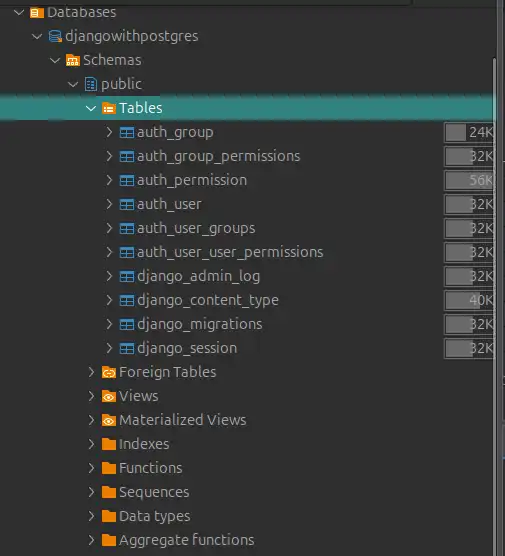
This will create all necessary tables in your PostgreSQL database.
This command ensures your database schema is up to date and that all necessary tables are created.
You can verify whether the tables were successfully created using tools like DBeaver or any other database management tool you prefer.
Create a Superuser and Test It
Let’s create a superuser to access the Django admin panel.
(venv) wabisabi@wabisabi:~/Desktop/django_postgresql$ python3 manage.py createsuperuser
Username (leave blank to use 'wabisabi'): pythonfordeveloper
Email address: [email protected]
Password:
Password (again):
The password is too similar to the username.
Bypass password validation and create user anyway? [y/N]: y
Superuser created successfully.

This confirms that your PostgreSQL integration is working correctly and your Django project is now ready for use.
Run the Development Server and Test It
Now, launch the Django development server with the following command:
python3 manage.py runserver
This will start the server at http://127.0.0.1:8000.

Open this URL in your browser, and visit http://127.0.0.1:8000/admin to access the Django admin panel.
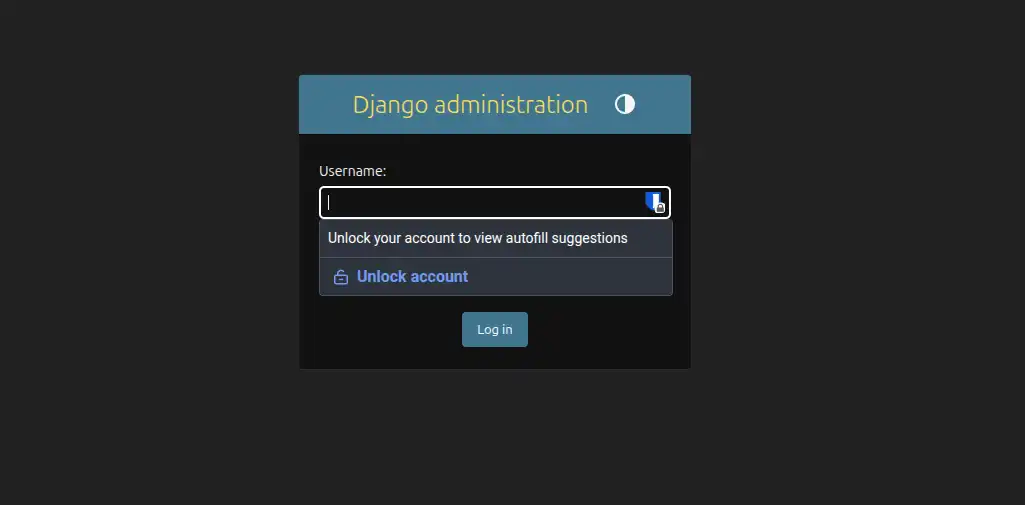
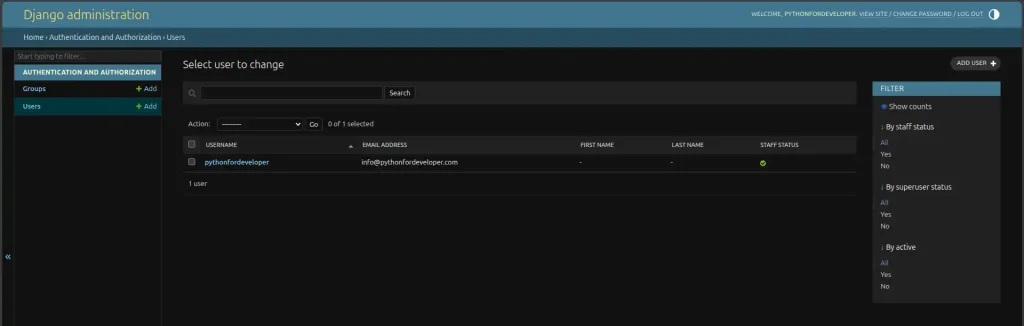
Log in using the superuser credentials you created earlier. Once logged in, you’ll have access to the admin interface, where you can view all tables and data associated with your project.
Conclusion
Many developers prefer using PostgreSQL as their SQL database of choice over other alternatives. Django’s ORM provides excellent support for PostgreSQL, making it an ideal option for high-end and complex systems. It’s fast, reliable, and highly scalable — a perfect combination for modern web applications.
You Might Also Like
 Design & Architecture
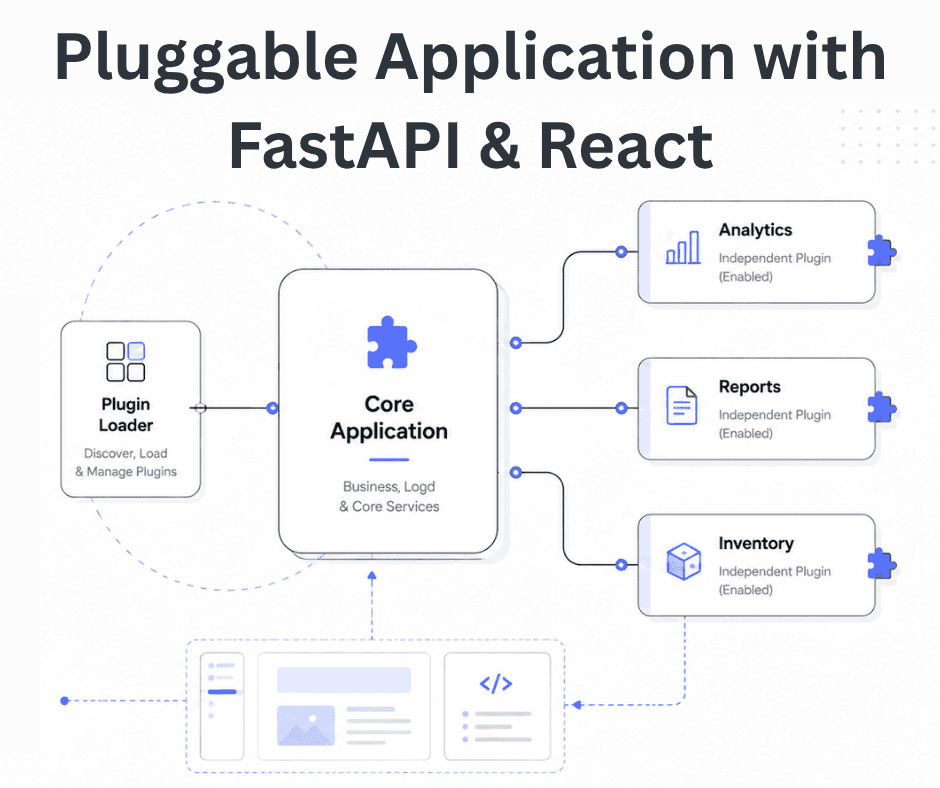
Building a Pluggable Application with FastAPI and React
Some applications need a different architectural approach from the traditional way of building web systems. One useful option is pluggable architectur
11 min read
 Design & Architecture
Beyond Monoliths: Designing Software with a Plug-and-Play Mindset
In the early days of software development, most companies and developers used monolithic architecture to build systems. It is a traditional approach t
5 min read
 Best Practices
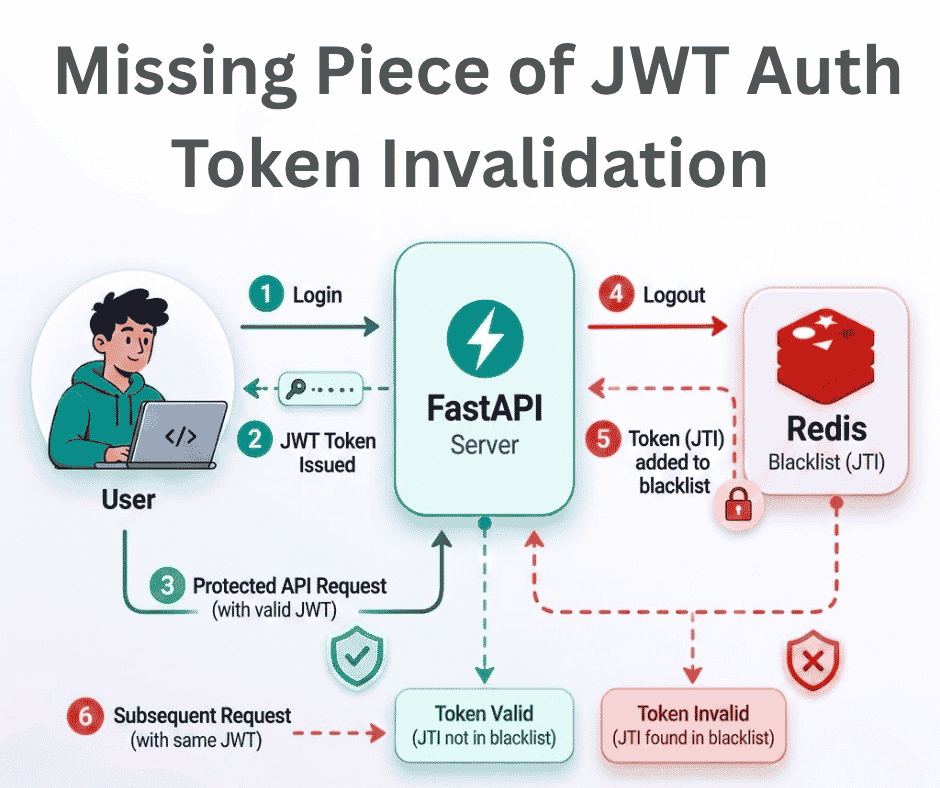
The Missing Piece of JWT Auth: Implementing Token Invalidation in FastAPI
JWT stands for JSON Web Token. It is an open standard that defines a compact and self-contained way to securely transfer data between two or more part
12 min read